
News
How To Design Useful Empty States For Mobile Apps

Key Takeaways
- Every empty screen should explain the situation and the next available step.
- First use, no results, completed tasks, permission gaps, offline moments, and errors require different messages.
- A clear headline, short supporting text, and one primary action usually create the strongest hierarchy.
- Visuals should support the message, not compete with it.
- Accessibility and responsive behavior need to be considered before launch.
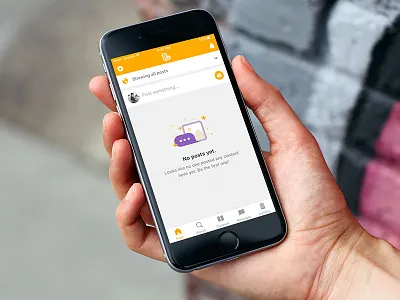
Empty states are the screens people see when an area of an app has no content to show yet, cannot show content, or has finished a task. Strong empty state UI turns these moments into clear guidance instead of dead ends.
A blank screen can leave people wondering whether the app is broken, whether they missed a step, or whether there is simply nothing to see. A useful empty state quickly addresses that uncertainty, explains what belongs on the screen, and gives the user a sensible next action.
Why Empty States Deserve More Attention
Mobile apps often open on screens that have no user-created data. A new task list has no tasks, a saved-items area has no saved products, and a search screen may return no matches. Treating these states as unfinished design work misses an opportunity to teach the feature and help the person move forward.
Compare “Nothing here” with “Save items you want to revisit. Browse categories to get started.” The second version explains the screen’s purpose and provides a path ahead. The state is no longer empty from the user’s perspective. It has a job.
Start by Naming the Type of Empty State
“Empty” describes several different situations. Identifying the reason first prevents teams from using a generic message where a specific explanation is needed.
- First-use state: The user has not added content yet.
- No-results state: A search term or filter did not find a match.
- Completed state: The user has cleared, finished, or archived everything in a list.
- Blocked state: The feature needs a permission, account setting, or required setup step.
- Error state: Content should be available, but the request failed.
- Offline state: The app cannot currently reach the service it needs.
A completed inbox can feel positive and calm. A failed request should acknowledge the problem and offer recovery. Using “No data” in both situations can mislead users because the causes and appropriate actions differ.
Give the Screen a Clear Job
Decide what question the screen must answer first. It may be “What is this section for?”, “Why are there no results?”, or “How do I fix this?” Then build the content around one primary goal. An empty state can introduce a feature without becoming a long tutorial.
Build the Core Message
A reusable structure keeps empty-state writing focused:
- Headline: State the situation in plain language, such as “No saved items yet.”
- Supporting text: Briefly explain what will appear here or why it is unavailable.
- Primary action: Offer the clearest next step, such as “Browse items” or “Try again.”
- Optional secondary action: Include one only when it solves a real alternative need.
Specific verbs reduce guesswork. “Add your first task” says more than “Continue,” while “Retry” is clearer than “Submit” after a failed request. Keep the language short, avoid blame, and do not make users decode clever wording when they need help.
Choose Visuals and Actions That Support Recovery
An icon or illustration can make a first-use screen feel approachable, but it should remain secondary to the headline and button. Do not use upbeat artwork to soften a serious problem to the point that users miss the error. Meaningful icons also need text labels because symbols alone can be ambiguous.
Place the primary button near the message it supports, and label it with the result of tapping. “Add your first item,” “View categories,” and “Try again” set clearer expectations than “Continue.” Keep competing actions to a minimum, especially on smaller screens where equal-weight buttons can slow decisions.
Plan for Mobile Constraints
Empty states must work on short screens, with larger text settings, in portrait and landscape orientations, and in split-screen layouts where available. Keep the essential explanation and main action visible when possible. Check that safe areas, keyboards, system bars, and navigation controls do not obscure content or trap the only useful button below the fold.
Make Empty States Accessible
Use readable text, sufficient contrast, descriptive button names, and text alternatives for meaningful images. Do not rely on color alone to communicate an error or blocked condition. Test the layout with larger text to ensure that copy wraps without hiding the action.
When a screen changes from loading to an error, success, or no-results state, assistive technology should be able to receive that update. The WCAG 2.2 guidance on status messages describes how important updates can be made available without unnecessarily moving focus.
Use Familiar Patterns Without Losing Clarity
Follow platform conventions for controls, navigation, and feedback so the screen feels predictable. At the same time, keep the product voice direct and useful. Background reading on plain-language writing can help teams favor concise labels and helpful actions over vague interface copy.
A Simple Empty-State Design Process
- List every screen that can appear without content.
- Identify why each state is empty.
- Write the user’s likely question in one sentence.
- Create the headline, supporting text, and one primary action.
- Design the visual hierarchy around that action.
- Check accessibility, responsive layouts, offline behavior, and failed requests.
- Test with people who do not already know the product.
Common Mistakes to Avoid
- Showing a blank screen with no explanation.
- Calling an error “no data.”
- Giving several buttons equal prominence.
- Using decorative visuals that distract from the next step.
- Designing only the ideal, full-content version of a screen.
How to Test an Empty State
Show the state without explanation and ask what the tester thinks happened, what they would tap first, and what they expect next. Watch for hesitation, missed actions, and misunderstood labels. Review measures such as time to first action, primary-button selection, retry success, exits from the screen, and support requests.
Final Checklist for Product Teams
- Is the reason for the empty screen clear?
- Does the message match the user’s actual situation?
- Is there one obvious next step?
- Does the state work with screen readers and larger text?
- Has it been tested beyond the design team?
Conclusion
An empty state is not a missing screen. It is part of the product experience. When the message, visual hierarchy, and next action match the situation, an otherwise blank moment becomes a useful starting point, recovery path, or satisfying sign of progress.


Digital Humans: How They Work, Where They Help, And How To Use Them Responsibly

How To Design Useful Empty States For Mobile Apps

Top SEO Agencies for Automotive Brands in Australia

Hurt at Work? A Second Claim Might Cover Pain Comp Ignores

How to Create Trustworthy Product Images That Help Shoppers Buy With Confidence

Game Music and Sound Design: How Audio Shapes Online Play

Biggest CFD Brokers in the World: Who Leads the Global Market?

Your First Gum Measurements: Making Sense Of The Numbers

How an Edit Stays Useful After the Face Paste Stops Impressing Anyone

ADA Signage: What Every Business Should Know About Interior Signs

Understanding Single-Account Gaming Platforms and Their Benefits

Cove Lighting and False Ceilings: Creating a Soft, Layered Glow

Where to Find Pennsylvania’s Best Pizza During National Pizza Month

Corporate Gifts for Better Business Brand Promotion Now

Inside the Multi-Million Dollar Gaming Economy: How Streamers and Digital Assets Drive the Virtual Currency Boom

Who Keeps the Jackpot? How Gambling Winnings Are Taxed in the US, the UK and Denmark


Don Toliver Net Worth: Height, Age, Real Name, Career & More
Don Toliver is an American rapper and singer best known for his RIAA platinum certified songs, No Idea and After...


Finesse2tymes Net Worth: Height, Age, Real Name & Career
Finesse2tymes is an American rapper and recording artist. He is mainly recognized for his thunderous voice and motivational lyrics in...


Sugarhill Ddot Net Worth: Height, Age, Real Name & Career
Sugarhill Ddot is an American hip-hop recording artist best known for his songs, Real Facts and I Wanna Love You....


GloRilla Net Worth: Height, Age, Bio, Real Name & Career
GloRilla is an American rapper and hip-hop recording artist from Memphis. She is best known for her popular singles, “Westside...


Destroy Lonely Net Worth: Height, Age, Real Name & Career
Destroy Lonely is an American rapper best known for his 2022 mixtape, No Stylist. He is currently signed to rapper...
-
Rappers2 years ago
GloRilla Net Worth: Height, Age, Bio, Real Name & Career
-

 News2 years ago
Trash To Treasure: Maximizing Space And Efficiency Through Junk Removal
-

 Businessman3 years ago
7 Proven Lead Generation Strategies To Implement in 2023
-
 Businessman2 years ago
Brandon Fugal Net Worth: How Rich is Skinwalker Ranch Owner?
-

 Rappers4 years ago
BigXthaPlug Net Worth: Height, Age, Real Name & Career
-

 TV Stars2 years ago
Kaleb Cooper Net Worth: How Rich is the TV Star Actually?
-

 Internet Stars4 years ago
Mufti Menk Net Worth: How Rich is the Islamic Speaker Actually?
-

 TV Stars2 years ago
Carla Diab Net Worth: How Rich is the TV Star Actually in 2025?
You must be logged in to post a comment Login